Showing posts with label photo editing tutorial. Show all posts

Monday, January 11, 2010

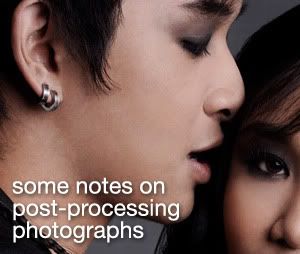
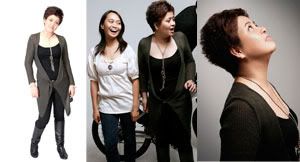
some notes on post processing portaits/fashion photographs

Lately I've been seeing a lot of works of "photographers" that look like, well, uber-edited. These photographs are those usually edited using photoshop 3rd-party actions... with the photographer or the one who post process the photo not exerting any effort to make the photo look like it was not edited/post processed. I've seen a lot of photographs of people having skin that looks very... unnatural... reminds me of photos of Mariah Carey and that Madonna for Louis Vuitton Ad Campaign.

I used to work for a magazine publishing company as a photo editor (long before I started taking photos myself) and learned a lot from my former boss about post processing photos of models/people. Being able to know what photo editors do, I always try to shoot photos now that requires little or no post processing at all because we all, well, most of us know that the more you photoshop a photograph, the more you destroy its pixels.

We've always been told that nobody is perfect. Physically, even models have flaws... pimples, wrinkles, scars, etc etc. What most people do when editing photos is like what I mentioned earlier, use 3rd party actions. These actions usually take the details off the skin of the subject by blurring off those details making the skin look smooth. Downside is, the skin will look unnatural... like the texture of a mannequin.

When editing off skin imperfections, I use the healing brush and stamp tools, making sure that my brush size is not bigger than 10 (for a photo from a 12 or 15 megapixel camera). This helps to retain the texture of the skin and as much as possible I keep some little imperfections to make the photo look unedited. It usually takes me 2 to 4 hours editing a 12-15MP photograph. A li'l practicing with the healing brush tool and you'll be able to master using it.

(click images to zoom in)

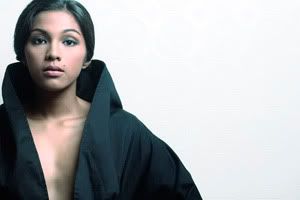
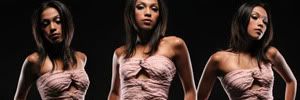
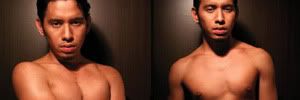
original image


edited using the healing brush and stamp tools


with Imagenomic's Noise Reduction in Portrait setting

I have nothing against using "skin perfecting" 3rd party applications in photoshop. It really depends on how you want your final photo to look like. But if you want natural-looking skin texture in your final photo, I suggest editing using the healing brush tool in 10 brush size. Click here to view full entry...

Sunday, March 8, 2009

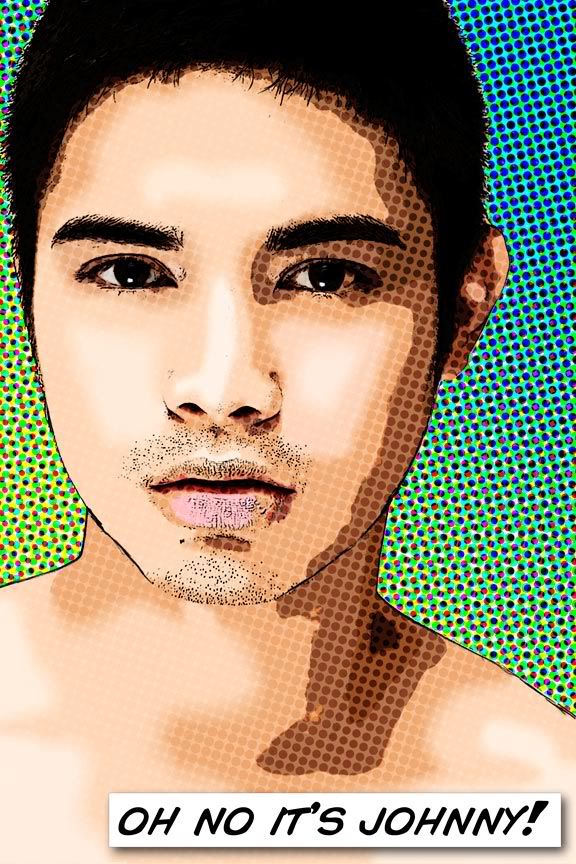
For John


Photobucket


My peace offering. Thank God were ok na.


=============
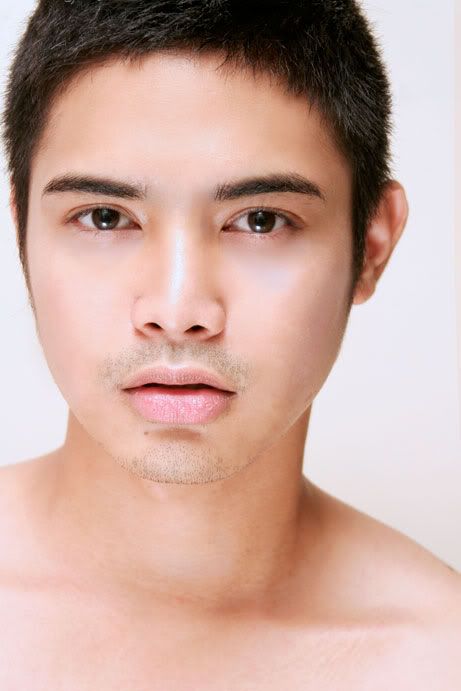
here is John's original photo.


I learned how to achieve this effect through this tutorial but I tweaked it up a bit by removing some of the hard edges and softening it using the healing brush tool
Click here to view full entry...

Monday, March 2, 2009

Photoshop and Painter Tutorial: The Impressionism Effect

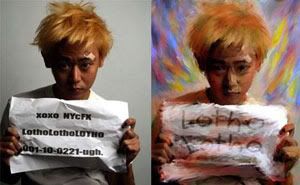
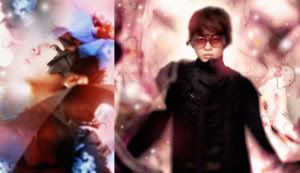
This tutorial will teach you how to edit your photo to give it that roughly painted / impressionism effect I did in my previous post.

In this tutorial, I would like you to experiment and play around later on in photoshop. I'm just gonna teach you the technique on how to achieve that "painted" look without actually painting the subject in corel painter or photoshop.


before and after

Photobucket


you will be needing:
-a tablet
-know-how in Corel Painter and Adobe Photoshop
-Corel Painter (I'm using Painter X)
-Adobe Photoshop
-a keen eye for details

==================================

Open the jpeg file in corel painter.

I'm gonna use my friend, Lotho's pic in this tutorial. Lotho, BTW, is a very talented, fab and one of the most sought after stylists here in Manila. Checkout his blog in ISKANDALOSA. 
The resolution of the photo is 1250 x 1563 pixels.

Photobucket


The background of the photo is plain and I wanted to put in some colors. use the brush tool and select oil and then fine camel brush. In this photo, I'm gonna use the shades of red, orange and yellow.

Photobucket

Photobucket

Photobucket


now... paint...

Photobucket

Photobucket

Photobucket


Its now time to blend the colors and distort the whole picture...
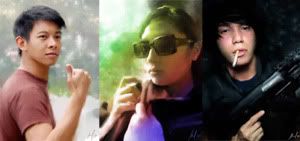
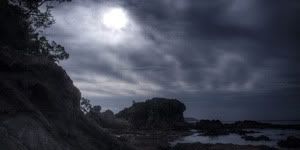
Using the brush tool, select blenders and then "just add water."
Use a brush size that you think would be great in distorting the photo.

Photobucket

Photobucket


Distort the photo using this brush...

Photobucket

Photobucket


Create atleast three versions of this distorted photo. In the other versions I created, I used blues and greens in the background.

Photobucket

Photobucket

Photobucket


now open the three photos you distorted in photoshop

Photobucket


drag the photos into one PSD file

Photobucket


The keyword is "PLAY!"
The trick now here is layering and masking: play around with the settings of each layer ( multiply, linear burn, difference, overlay, soft light, screen, etc etc) and mask out those part of the photo which you think needs masking.

Photobucket

Photobucket


Flatten the PSD file and adjust levels, hue, saturation etc etc. if needed. 

This is my final artwork:

Photobucket

If you have any questions, pls leave a comment and I would gladly answer it for you. =)

Click here to view full entry...

Monday, February 23, 2009

Photoshop 101: Soft Focus

This is just a basic / simple tutorial to achieve that "dreamy" soft focus look in photographs. I usually do this in photos I take for dramatic/romantic portraits and/or wedding photos.

step 1: open the file in photoshop. Im gonna use here the photo I took for my high school friend's pre-nup shoot.


Photobucket


step 2: duplicate the photo in the layers palette. (select the photo then press command+J or ctrl+J)


Photobucket


step 3: with the duplicate of the photo selected in the layers palette, apply gaussian blur.


Photobucket


The amount of the gaussian blur will be tha amount of the "dreamy glow" of the photo. The sample photo here was taken using an 8MP camera. I set the blur here in 15.4 pixels.

Photobucket


step 4: Set the opacity of the blurred layer in layers palette. Experiment. Try what opacity level works for you. I usually set the opacity from 30% to 45% depending on how soft I want the photo to be.

Photobucket


step 5: create a mask for the blurred layer, then use the brush tool (set to 30% opacity) to mask out the eyes and the lips and other important highlights that you want to be a bit sharp. this will make the catchlights in the eyes and the lips to be a bit defined. don't over do it though.

Photobucket


step 6: now select the two layers (click the first layer then while holding command or ctrl, click the blurred layer)

Photobucket


and merge them (command+e or ctrl+e)


Photobucket


step 7: now we're gonna add a bit of contrast to the photo. duplicate the merged layers (select it the press command+J or ctrl+j)

Photobucket


then set the duplicated layer to "overlay" and set opacity the opacity to 8% to 15% whichever would look best.


Photobucket


ta-dah!
now we have given the photo that "dreamy" soft focus look
here are the before and after photos:
PhotobucketPhotobucket
Click here to view full entry...